Adding flashcards
How to add questions and answers to a pack.
This page explains how to add questions and answers to a Rotely pack. A pack holds the flashcards you want to study together.
Create or open a pack#
- Open Rotely and create a pack, or open one you have already made.
- If you are creating a pack, see Creating a Pack.
Add a question and answer#
- In the pack, tap the plus in the top right.
- Enter the question you want to review.
- Enter its answer, then finish adding the card.
- Optionally add images, videos, or enable TTS.
- Repeat for the other questions you want in the pack.
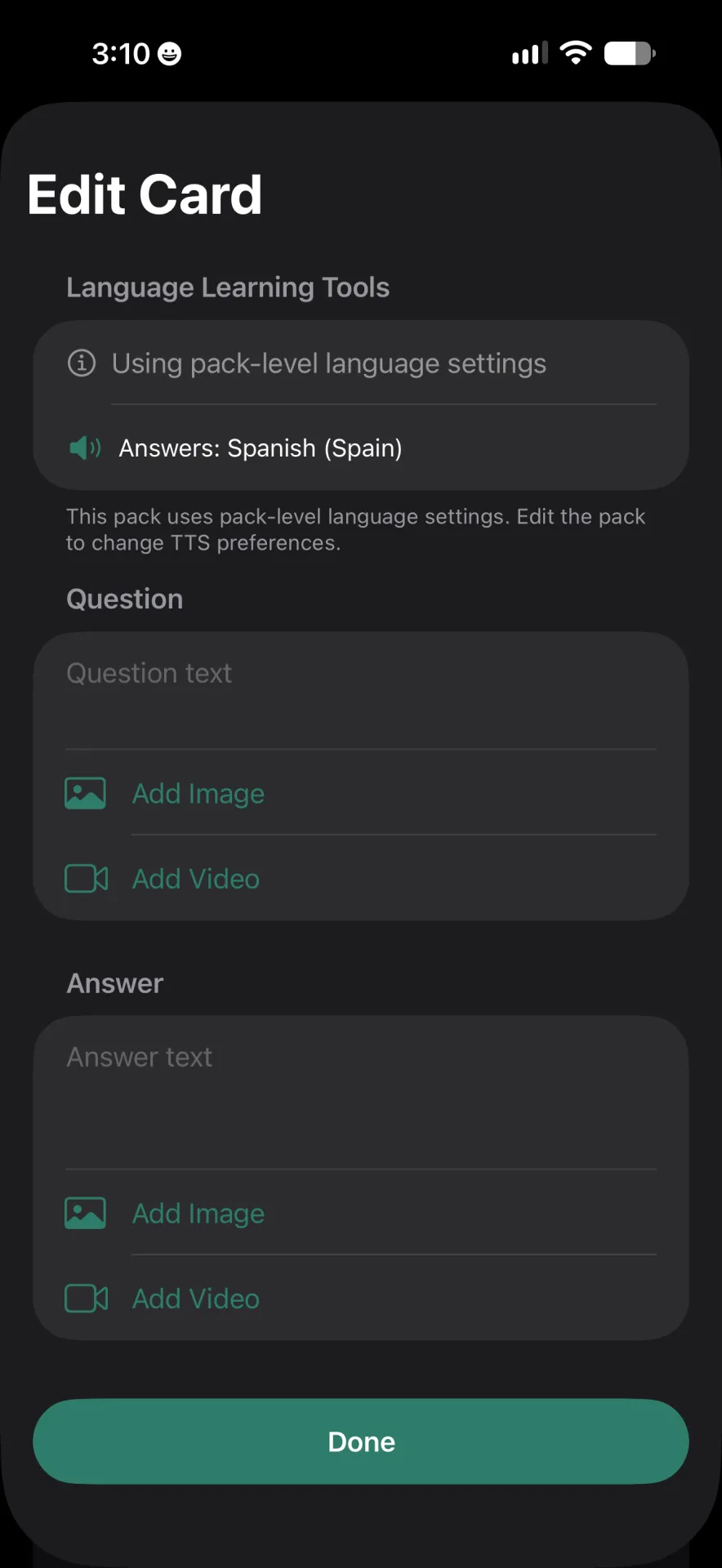
Keep each question focused on what you want to recall. For example, if a topic has several separate facts, you can make a card for each one rather than putting them all in one answer.
Use an answer suggestion#
Rotely can generate an answer suggestion for a flashcard question using on-device AI. This requires an Apple Intelligence capable device. If the option is available while you are adding a card, you can use its suggestion as a starting point, then check that the answer says what you intended before finishing the card.
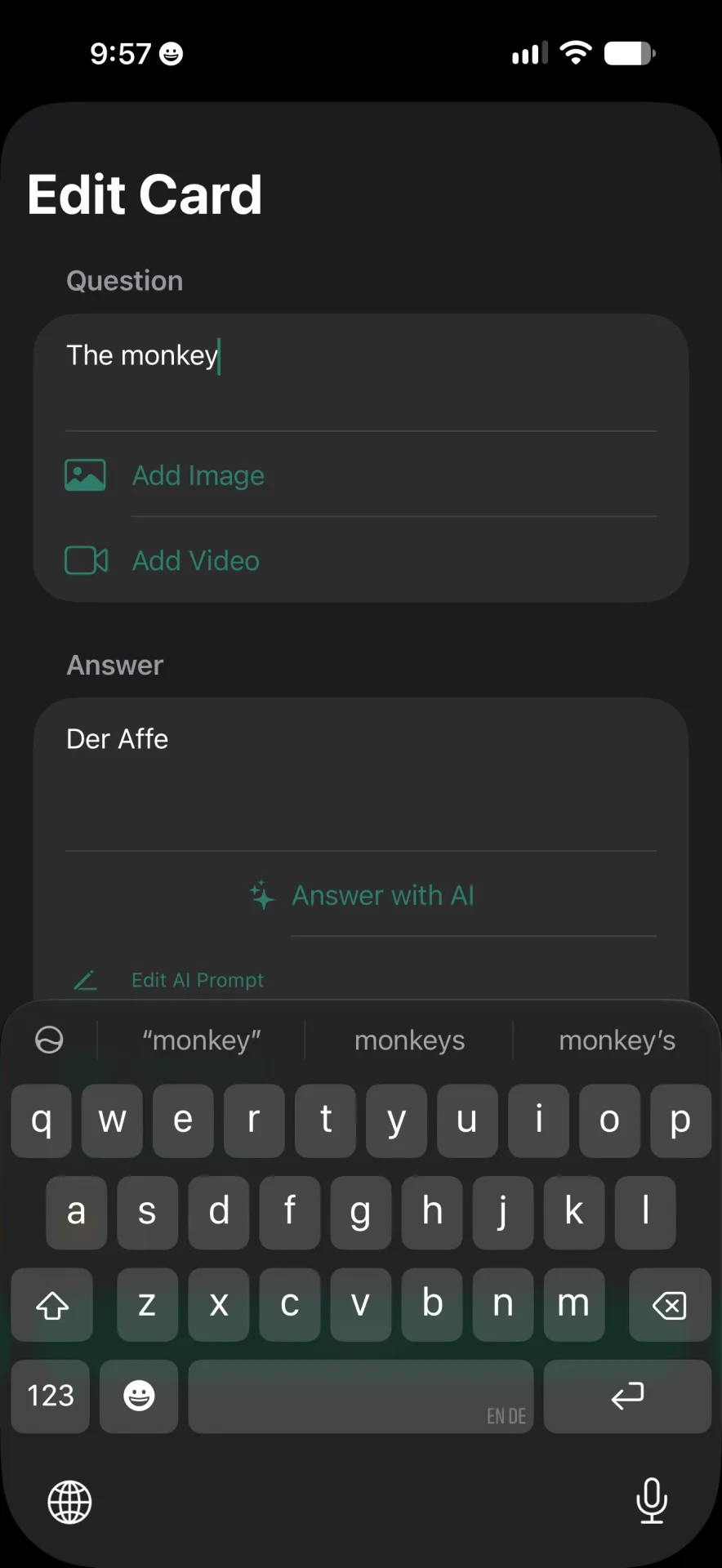
You can also add images and videos to flashcards. Once your cards are ready, see Studying a pack for the three review modes.