Creating a pack
How to create a pack on Rotely
Packs are a group of flashcards. Packs are the main way you create a group of related flashcards.
Creating a pack#
- Tap on Library in the bottom navigation bar
- Tap the plus in the top right bar
- Choose "Create New Pack", "Import Pack...", or "Generate Pack with AI"
Tip
We recommend creating a new pack first for your first pack.
Note
Generating packs with AI is a pro feature and requires Rotely Pro.
Create New Pack#
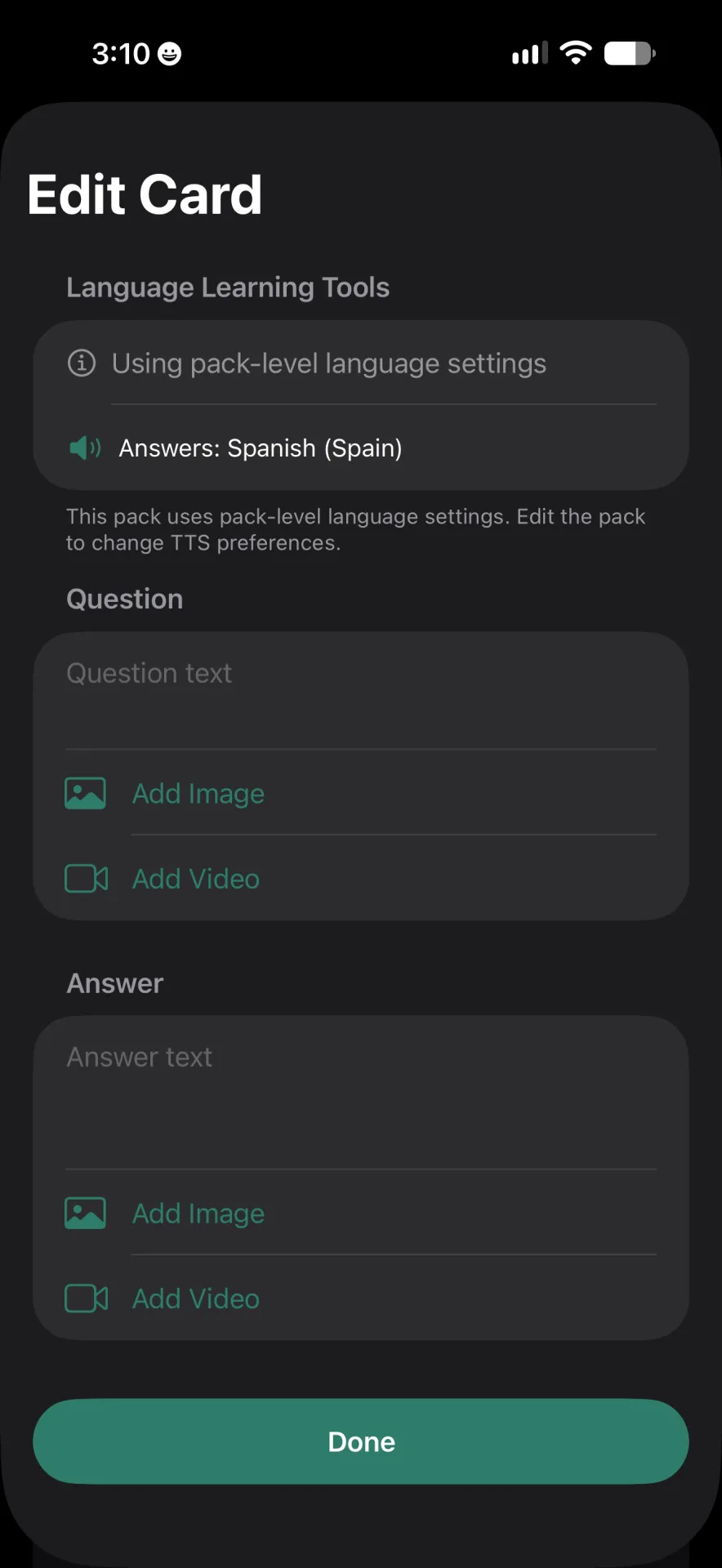
If you choose to create a new Pack, you will see the Edit Pack screen appear. Here you can name your Pack, enable AI assistance, pick colours and more.
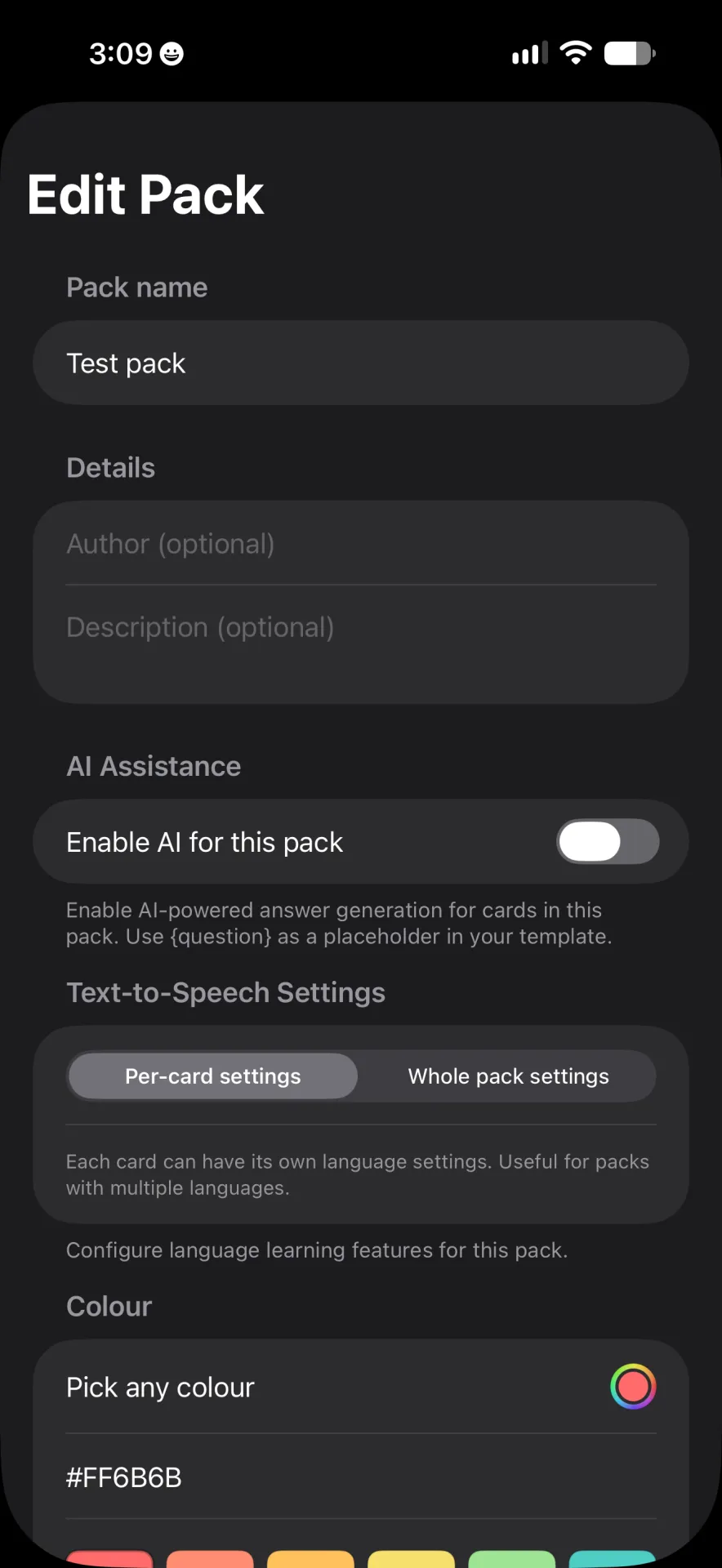
Once you have completed the required fields on this screen, the Pack will be live in the Library.
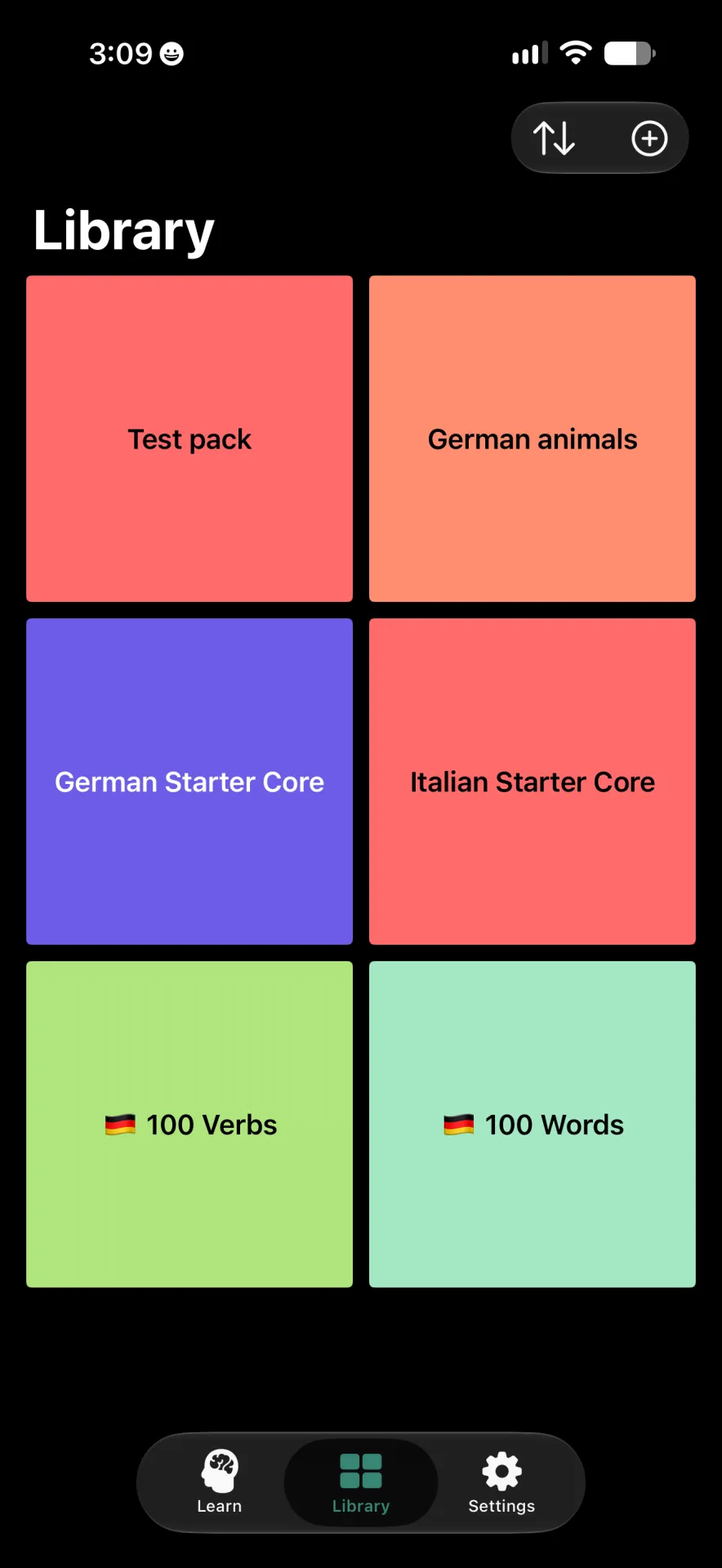
See Creating Cards to learn how to add a Card to the Pack.
Import Pack...#
You may import a pack from a URL or a .rotely file. Importing from a URL requires a specific JSON file. You can see samples below in the import screen.
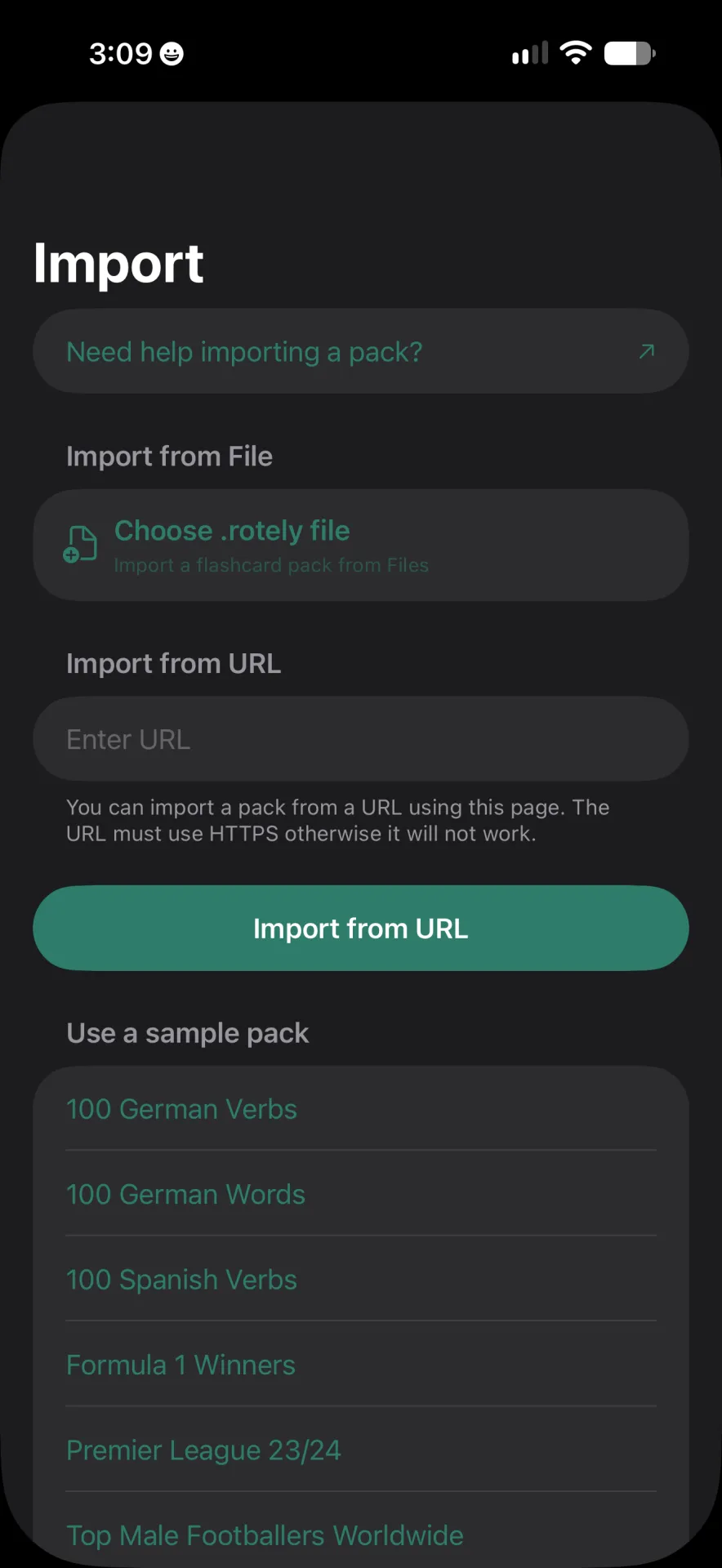
The exact format of the JSON is available on the Importing page.
Note
The import feature currently does not allow importing from other apps.
Generate Pack with AI#
Rotely Pro users may use AI features to generate a full pack. This takes seconds to do and in testing was very effective. To begin with just enter a prompt for the kind of pack you would like.
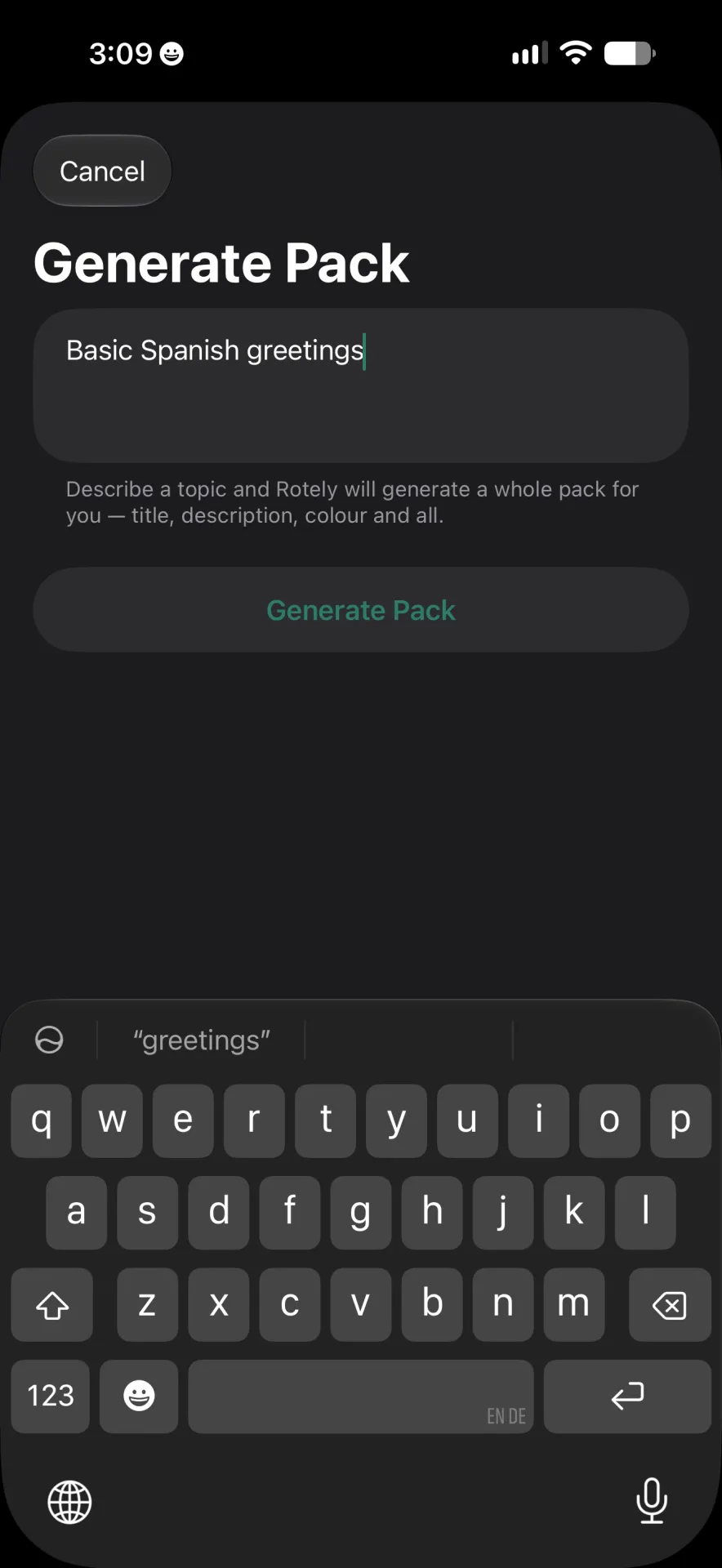
In this example we are using "Basic Spanish greetings".
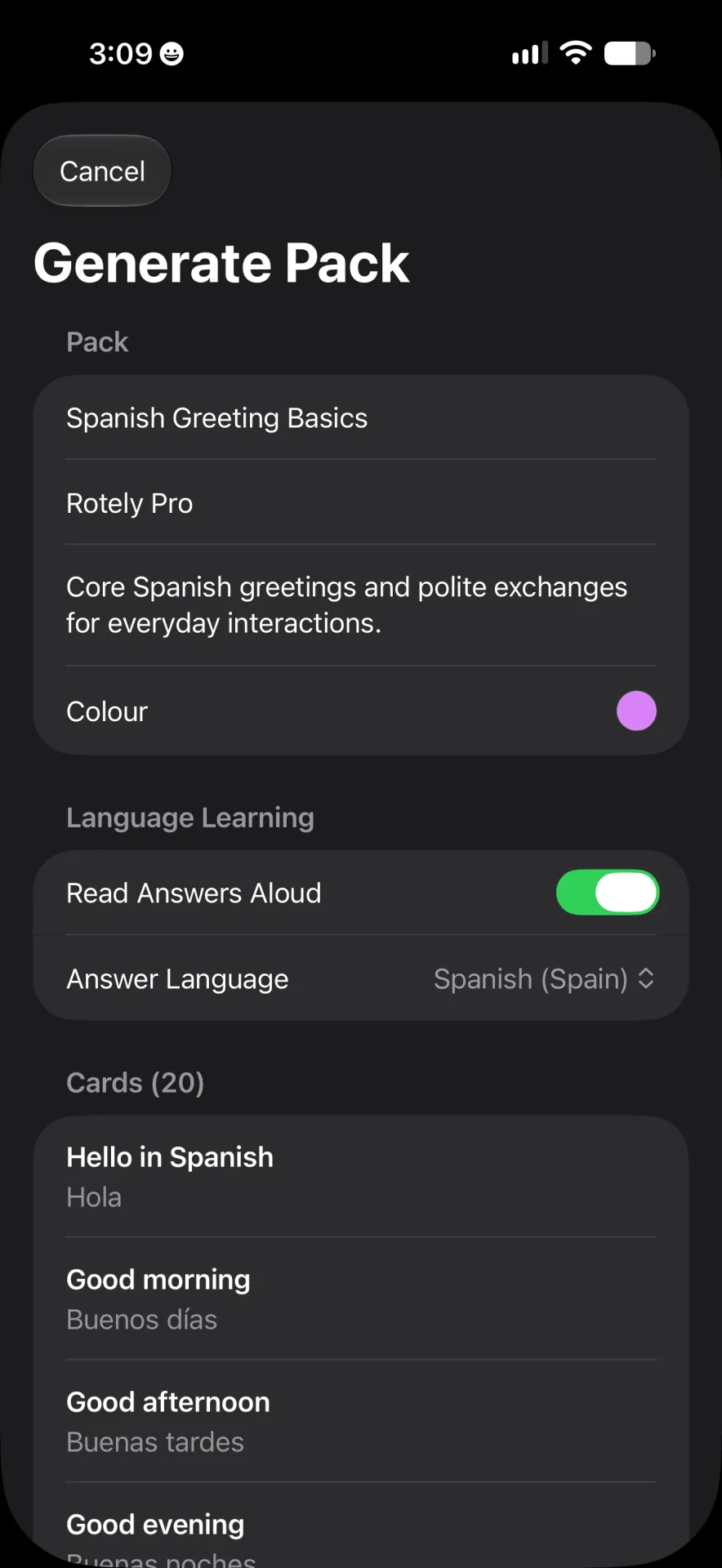
The AI has now generated a full pack for you and lets you preview it before adding it to your library. You can make changes now or later once it has been saved to your library.
Scroll down to the bottom and tap "Save Pack" to add it to your library.
Creating Cards#
To create a new Card, ensure you are in a Pack, and press the plus in a circle in the top right. This will bring up the Edit Card screen where you can type the Question and the Answer. For more details please see Adding flashcards.